
AI Biodata & Profile Studio
Turn one set of details into a marriage biodata, CV, student or personal profile, then restyle and export to PDF or Word.
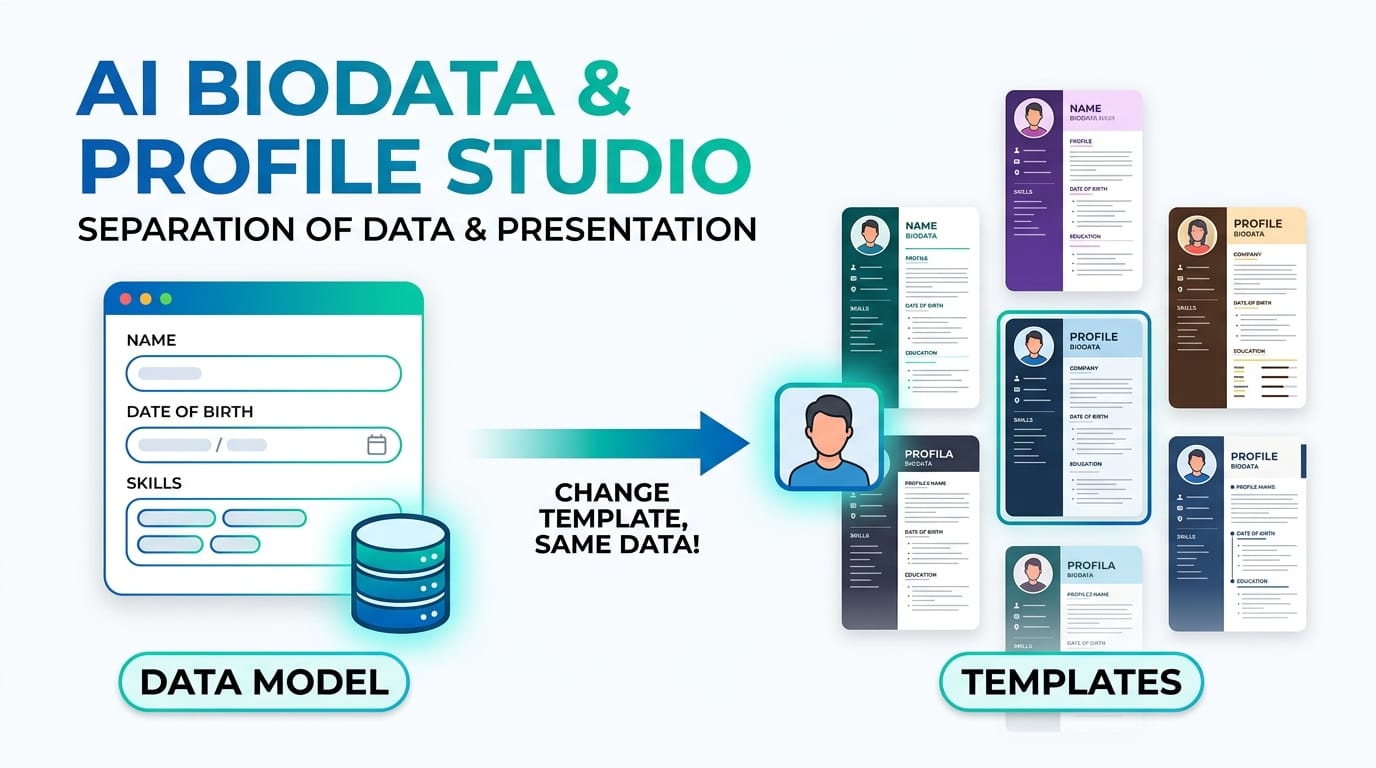
Table of Contents
Pick your AI provider and paste your own key. Keys are stored only in your browser. Gemini keys come from Google AI Studio; OpenAI keys from the OpenAI dashboard.
Upload your existing CV (PDF, Word, or image) or paste its text. The AI reads it, fills the matching fields for the current type, and switches to a modern template. Uses your AI key.
The AI translates your entered values into the chosen language. Labels stay in English. Uses your AI key.
🟢 One record, four documents
Enter your details once, then produce a marriage biodata, a job CV, a student profile, or a personal profile from the same information.
🔵 Templates change the look, not the data
Switch between Classic, Modern, Minimal, or a 2-Column CV. Your facts stay put; only the design around them changes.
🟣 Private by design
Everything runs in your browser. Your photo and details are never uploaded to a server, and drafts are saved on your own device.
How to build your biodata
- 1Pick a type at the top — Marriage, Job / CV, Student, or Personal. The form rebuilds itself for that document.
- 2Fill the fields. Tap AI on any long box to draft or polish it, or use Import CV to auto-fill from an old resume (PDF, Word, image, or pasted text).
- 3Choose a Template from the bar at the top, and add a photo or a QR contact code if you want one.
- 4Export — PDF, Word, PNG, or Print. AI features need a free key added once under Set API Key.
🔴 One data model, many layouts
When you type your name, date of birth, and skills into this tool, you are building a data model — a plain set of fields and values. The template you pick is a separate presentation layer that decides how those values look on the page. Change the template and the underlying data never moves; you are only re-rendering the same record. That split is the whole idea behind separation of data and presentation, one of the most reused principles in computing.
You meet the same principle every time a website keeps its content in HTML and its styling in CSS, or when a database holds records that a report then formats. Learn it once here and you will recognise it right across the syllabus.
🟡 Where this idea shows up in ICT
- SL O/L ICT: word processing and structured documents — content versus formatting.
- SL A/L ICT: HTML for structure and CSS for presentation; data versus information.
- Cambridge 9618 / GCSE / A-Level CS: records and fields as a data structure, and separation of concerns in program design.
- AP CSP / CSA: data abstraction — storing information once and using it in many ways.
The tool is only a worked example. The transferable skill is spotting when data and design should be kept apart, and why mixing them makes work harder to change. You can read a plain-English overview on the separation of presentation and content reference page.
🟢 A worked example: one record, three outputs
Input (the data model): name = "Nimali Perera", title = "Software Engineer", skills = "Python, SQL, Git", plus a short objective.
Output 1 — Modern template: a single sky-blue column with the objective on top.
Output 2 — 2-Column CV: the skills and contact rows drop into a dark sidebar, while the objective and experience fill the main column.
Output 3 — Classic template: the same fields inside a bordered, serif sheet.
The values were typed once. Only the presentation rule changed between outputs — no re-typing, no copy-paste.
🔵 Common mistakes when data and design get mixed
- Baking formatting into the value. Typing extra spaces or dashes to line things up breaks the moment you switch templates. Let the template handle spacing.
- Treating the layout as the source of truth. Your details are the record; the document is one view of it. Fix a typo in the field, not in the exported file.
- Over-filling. A CV that lists everything hides what matters. Keep the data clean and let a focused template do the rest.
🟣 Honest limits of a browser-based generator
- AI drafts and CV imports can be wrong or incomplete — always read and correct what the model fills in before you export.
- Word (.docx) export re-flows the layout for editing, so it is not a pixel-perfect copy of the on-screen preview; use PDF when the exact look matters.
- Because everything is stored on your device, clearing your browser data removes saved drafts. Export a copy of anything you want to keep.
For a related classroom tool that turns structured records into a formatted report, see our Student Target & Analysis System , and for the theory behind markup and styling read how HTML structure and CSS presentation work together .
Last updated: September 2026
🤔 Frequently asked questions
What does “separation of data and presentation” mean in this tool?
Your typed details are the data; the template is the presentation. You can restyle the document any number of times without changing a single field, because the two layers are kept apart.
Do I need an API key to make a biodata?
No. Building, styling, and exporting are free and need no key. A key is only required for the optional AI features — drafting text, translating, and importing an old CV.
Where are my details and photo stored?
On your own device, in your browser. Nothing is sent to a SchoolICT server. AI requests go directly from your browser to your chosen provider, and only when you press an AI button.
Can I import my old CV and reuse it?
Yes. Use Import CV to upload a PDF, Word file, or image, or paste the text. The AI reads it, fills the matching fields, and switches you to a modern template that you can adjust.
Which file formats can I export?
PDF and PNG for a fixed look, Word (.docx) for further editing, and a direct Print option. PDF best preserves the exact template design.
Does switching templates change my information?
Never. That is the point of separating data from presentation — the template only decides how your fields are arranged and coloured, not what they say.
Is the 2-Column CV suitable for job applications?
Yes. It places skills and contact details in a sidebar and your objective and experience in the main column, which is a common, recruiter-friendly layout.
Which AI providers are supported?
Google Gemini and OpenAI. You choose the provider and paste your own key under Set API Key; both can read images for CV import.
Can more templates be added later?
Yes. The tool reads a template registry, so new designs can be added without rebuilding it — your existing details simply render in the new layout.