

Planning your term schedule just got easier.
As teachers in Sri Lanka, one of the most tedious tasks at the start of every term is calculating the exact number of “teaching days.” You have to sit with a calendar, mark off the Poya days, cross out the public holidays, and then count how many Mondays or Fridays you actually have for your classes.
Stop doing it manually.
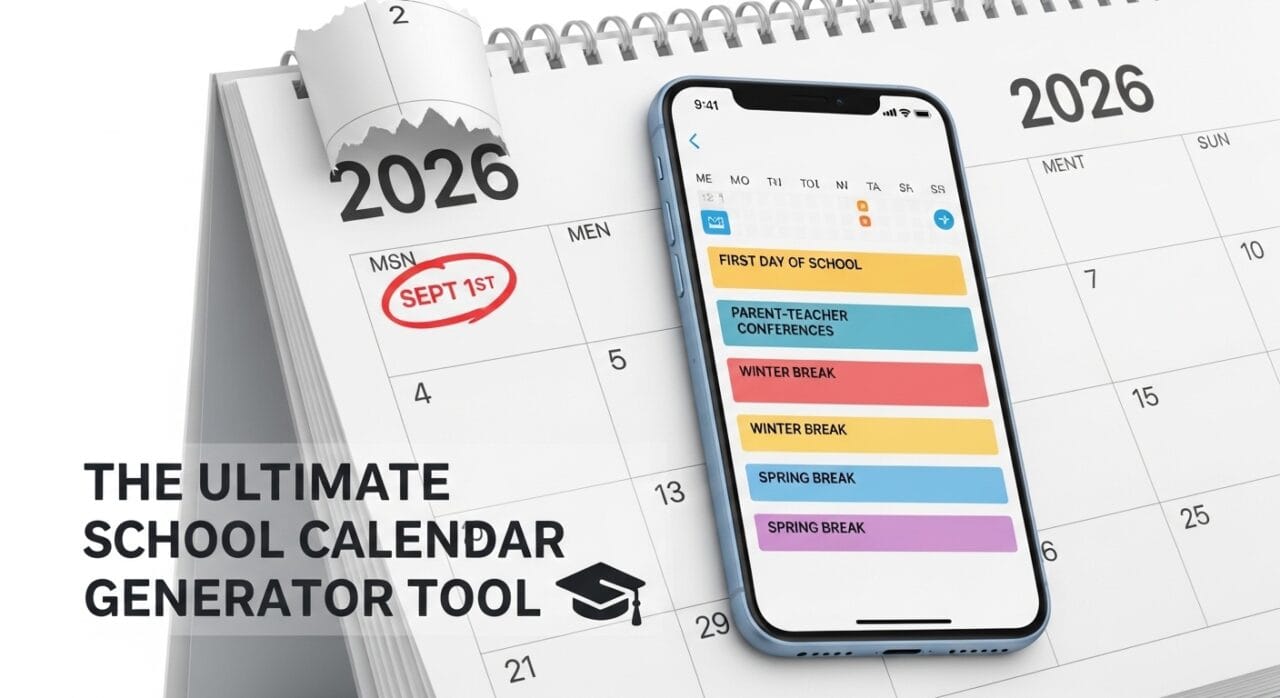
We are excited to introduce our updated School Schedule Tool for 2026. This free online tool is designed specifically for the Sri Lankan school syllabus and calendar. It takes your weekly timetable and instantly generates a complete list of dates for every class you teach, automatically skipping all public holidays.
Administrator Help Tool School Timetable Generator🚀 Key Features
1. 🇱🇰 Built for Sri Lanka (2026 Calendar)
This isn’t a generic international tool. We have pre-loaded it with the 2026 Sri Lankan Public Holiday Calendar.
- Auto-Skip Holidays: The tool knows when Thai Pongal, Vesak, or Independence Day falls. It automatically removes these dates from your schedule.
- Poya Days: All Full Moon Poya days for 2026 are already marked as holidays.
2. Smart Timetable Integration
Simply enter your class codes (e.g., 10-A, 11-B) into the weekly grid (Periods 1-8). The tool will calculate:
- How many Mondays the 10-A class has in Term 1.
- The exact dates for every Friday period for 11-B.
3. “Full Year” Dashboard
Want to see the big picture? Click the “📅 Full Year” button.
- Get a complete overview of Term 1, 2, and 3.
- See the total number of school days vs. holidays at a glance.
- Visualize the entire 2026 academic year in a color-coded calendar (Green = School Day, Red = Holiday).
4. Printable & Exportable
- Copy to Excel: Each generated column has a “Copy” button so you can paste the dates directly into your Excel term notes.
- Print Modes: We included special print buttons to print just the Calendar, the Weekday Summary, or the Term Overview.
📝 How to Use the Tool
Step 1: Select Your Term Open the tool and select Term 1, 2, or 3 from the dropdown menu. You can also click “Edit Dates” if your school follows a slightly different schedule.
Step 2: Enter Your Timetable Scroll down to the “Enter Teacher Timetable” section.
- You will see a standard 8-period grid (Monday to Friday).
- Type your class names (e.g.,
10A,11B,12Tech) into the slots. - Note: Your data saves automatically to your browser, so you won’t lose it if you refresh!
Step 3: Click Generate Scroll back up and click the green “GENERATE” button.
Step 4: View & Copy Results Open the “Generated Class Schedule” section. You will see a column for every class you entered.
- Example: If you typed
10Aon Monday Period 1 and Wednesday Period 4, the tool will list all the specific dates for those lessons in the10Acolumn. - Click “Copy” to save the list.
🛠️ Technical Details
- Privacy First: This tool runs entirely in your web browser. Your timetable data is saved to your computer’s “Local Storage” and is never sent to our servers.
- Mobile Friendly: Works on your mobile phone, but for the best experience (especially for printing), we recommend using a Laptop or Desktop.



Leave a Reply