

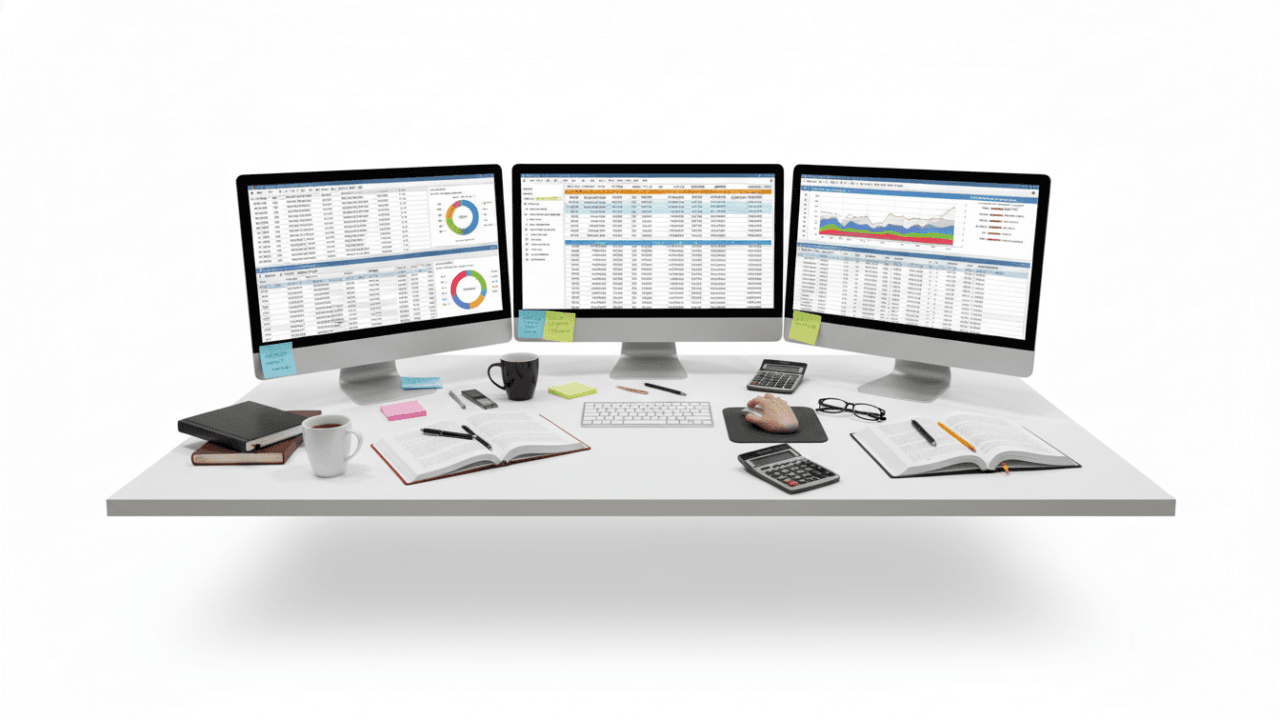
Electronic Spreadsheets are one of the most powerful tools in the ICT syllabus. Lesson 7 for GCE O/L students focuses on how to organize, calculate, and analyze numerical data efficiently. By combining theoretical notes with the SchoolICT.net interactive simulator, students can master these concepts with ease.
1. What is an Electronic Spreadsheet?
An electronic spreadsheet is a software application used for storing, organizing, and manipulating data in tabular form. Popular examples include Microsoft Excel, Google Sheets, and LibreOffice Calc.
Key Features:
- Grid System: Composed of Rows (numbered 1, 2, 3…) and Columns (lettered A, B, C…).
- Cell: The intersection of a row and a column (e.g., A1, C10).
- Worksheet: A single page within a spreadsheet file.
- Workbook: A collection of one or more worksheets.
2. Data Types in Spreadsheets
Every cell can contain different types of information:
- Labels: Text used for headings (e.g., “Student Name”).
- Values: Numbers used for calculations (e.g., “75”).
- Formulas: Mathematical expressions created by the user (e.g.,
=A1+B1). - Functions: Predefined formulas built into the software (e.g.,
=SUM(A1:A10)).
3. Cell Referencing: Relative vs. Absolute
This is a critical topic for the O/L exam.
- Relative Cell Reference: Changes when you copy the formula to another cell.
- Example:
A1
- Example:
- Absolute Cell Reference: Remains fixed even when the formula is copied. It uses the dollar sign ($).
- Example:
$A$1(The column and row are both locked).
- Example:
4. Essential Functions for the Exam
You must be familiar with these common functions:
- SUM: Adds all numbers in a range.
=SUM(B1:B5) - AVERAGE: Calculates the mean.
=AVERAGE(B1:B5) - MAX / MIN: Finds the highest or lowest value.
=MAX(B1:B5) - COUNT: Counts cells that contain numbers.
=COUNT(B1:B5) - IF: Performs a logical test.
=IF(B1>=50, "Pass", "Fail")
5. Interactive Learning: Spreadsheet Simulator
To help you practice without needing to open Excel, SchoolICT.net provides an Electronic Spreadsheet Simulator.
Why use the tool?
- Formula Testing: Enter formulas like
=A1*B1and see the calculation happen in real-time. - Range Selection: Learn how to select ranges (e.g., A1:C5) visually.
- Function Practice: Practice writing
SUMandIFfunctions to see how they behave when data changes.
6. Exam Success Tips
- Always start with “=”: In Paper II, if you write a formula without the equals sign (e.g.,
A1+B1instead of=A1+B1), you will lose the mark. - Order of Operations: Spreadsheets follow BODMAS/PEMDAS rules. Use brackets to ensure your calculations are correct.
- Identify the Range: Practice identifying ranges. A range from Column B, Row 2 to Column D, Row 5 is written as
B2:D5. - Charts & Graphs: Know which chart is best for what data.
- Pie Chart: For percentages/parts of a whole.
- Line Graph: For showing trends over time.
Ready to start?






Leave a Reply