
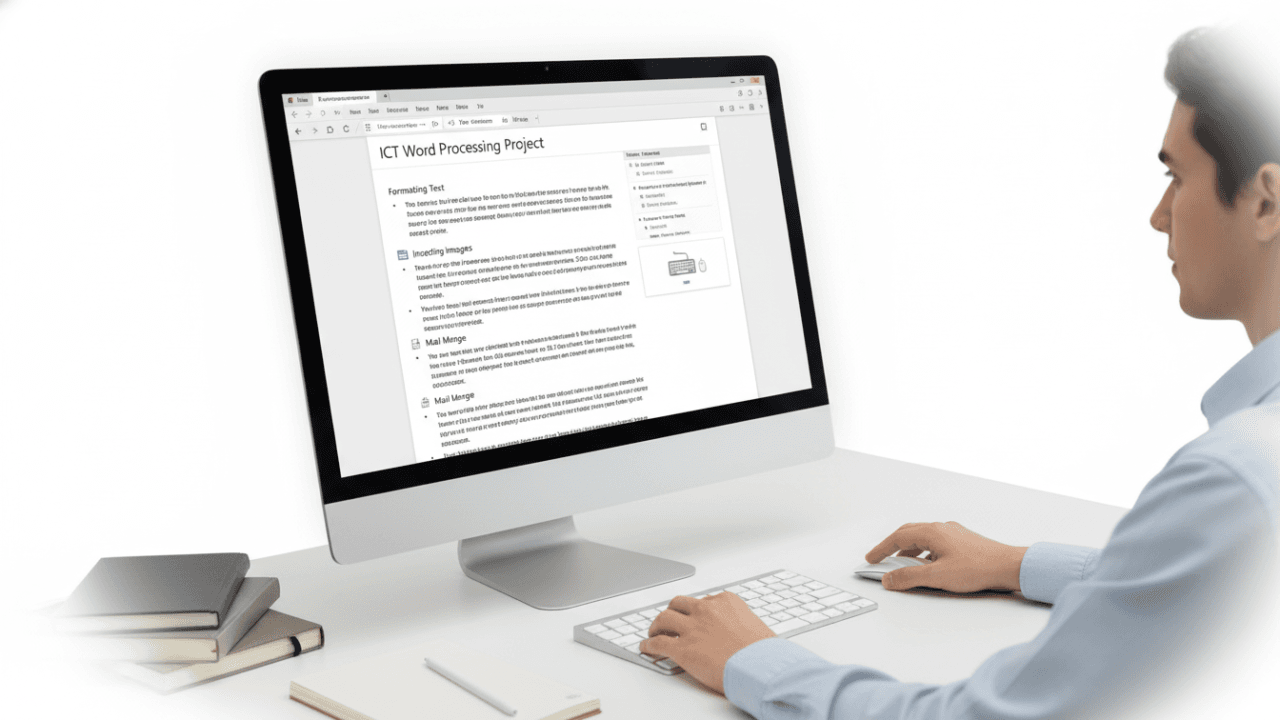
In the modern digital workspace, Word Processing is a fundamental skill. For GCE O/L ICT students, Lesson 6 provides the essential knowledge needed to create professional documents, ranging from simple letters to complex reports.
This guide integrates exam-focused theory with the interactive learning tools available at SchoolICT.net.
1. Introduction to Word Processing
Word Processing refers to the use of software to create, edit, format, and print documents. While there are many applications available, Microsoft Word and LibreOffice Writer are the most common examples in the Sri Lankan syllabus.
Key Advantages:
- Easy editing and error correction.
- Advanced formatting (styles, fonts, colors).
- Ability to insert tables, images, and charts.
- Mail Merge for bulk document creation.
2. The User Interface
Understanding the interface is the first step toward efficiency. Most modern word processors use a Ribbon interface.
- Title Bar: Displays the document name.
- Ribbon/Menu: Contains tabs like Home, Insert, Page Layout, and References.
- Status Bar: Shows page count, word count, and zoom levels at the bottom of the window.
3. Core Features & Formatting
Text Formatting
This includes changing the appearance of text to make it readable and professional.
- Font Face: Arial, Times New Roman, etc.
- Font Styles: Bold (Ctrl+B), Italic (Ctrl+I), and Underline (Ctrl+U).
- Alignment: Left, Center, Right, and Justified.
Paragraph & Page Setup
- Line Spacing: The vertical space between lines.
- Page Orientation: Portrait (vertical) vs. Landscape (horizontal).
- Margins: The white space around the edges of the page.
4. Advanced Tools: Tables and Mail Merge
Working with Tables
Tables are used to organize data in rows and columns. In your exam, you may be asked how to Merge Cells (combine multiple cells into one) or Split Cells.
Mail Merge
Mail Merge is a powerful feature used to create multiple documents (like invitation cards) at once by merging a “Main Document” with a “Data Source” (a list of names and addresses).
Steps of Mail Merge:
- Create the Main Document.
- Select or create the Data Source.
- Insert Merge Fields.
- Finish and Merge.
5. Interactive Learning: Word Processing Tool
At SchoolICT.net, we offer a unique Word Processing Simulator. This interactive tool allows you to practice formatting without needing to install software.
What you can do with the tool:
- Live Formatting: Highlight text and apply Bold, Italic, or Underline to see the results instantly.
- Alignment Practice: Experiment with different paragraph alignments.
- Shortcut Master: Learn and test your knowledge of keyboard shortcuts (e.g., Ctrl + S for Save).
6. Exam Tips for O/L Students
- Memorize Shortcut Keys: Every year, Paper I includes questions on shortcuts.
- Ctrl + N (New), Ctrl + O (Open), Ctrl + P (Print), Ctrl + Z (Undo).
- Understand “Find and Replace”: Know how to use this tool to change a specific word throughout a long document quickly.
- Spelling and Grammar: Remember that the red wavy line indicates a spelling error, while the blue/green line indicates a grammar error.
Ready to start?




Leave a Reply